> ## Documentation Index
> Fetch the complete documentation index at: https://docs.mcp-use.com/llms.txt
> Use this file to discover all available pages before exploring further.
# Inspector
> Connect to an MCP server, run tools, inspect resources and prompts, and debug widgets.
Use the Inspector when you need to test an MCP server from the browser. It lets you connect to a server, call tools with typed inputs, inspect resources and prompts, try chat, preview widgets, and copy client setup commands.
[ ](https://inspector.mcp-use.com)
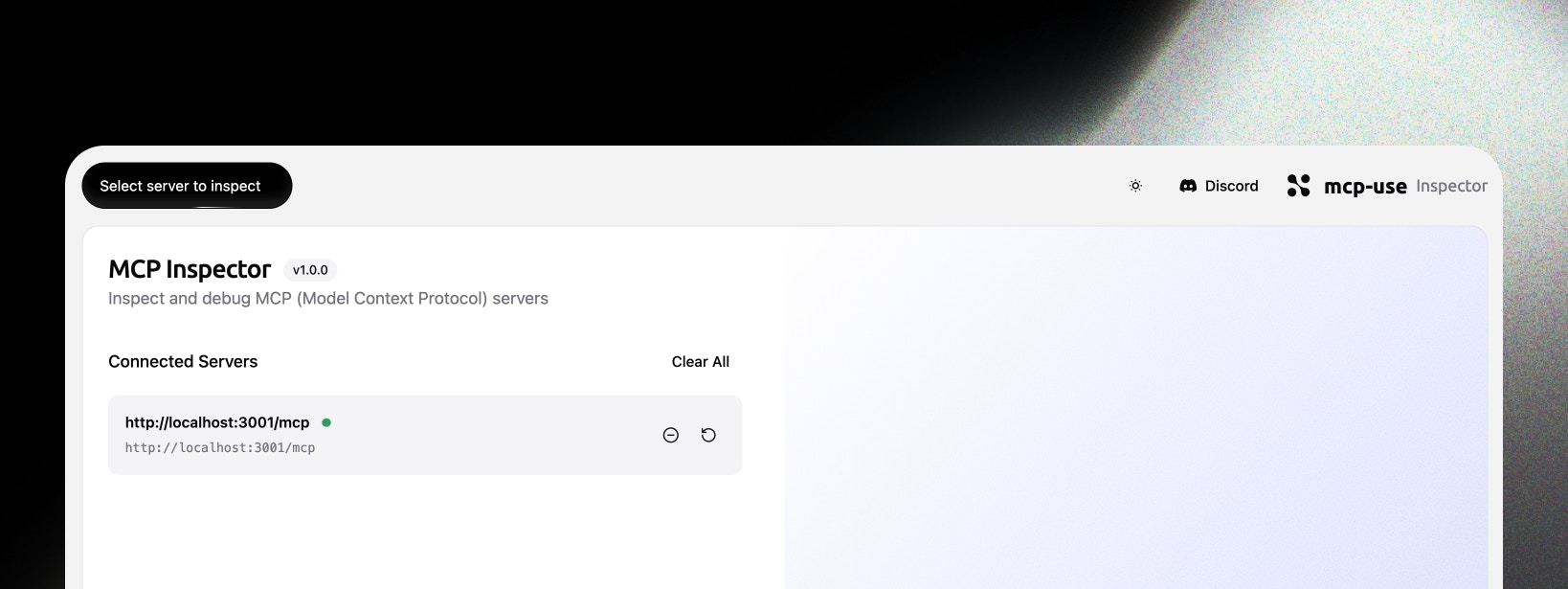 If your server was created with `mcp-use`, run the dev server and open the local Inspector:
```bash theme={null}
npm run dev
```
The default local URLs are:
| URL | Purpose |
| ------------------------------------- | ------------ |
| `http://localhost:3000/mcp` | MCP endpoint |
| `http://localhost:3000/mcp/inspector` | Inspector UI |
You can also open the hosted Inspector at [inspector.mcp-use.com](https://inspector.mcp-use.com) or run it with [`npx @mcp-use/inspector`](/inspector/cli).
## Connect to a server
Add a server from the dashboard. Choose the transport, enter the MCP endpoint URL, and click **Connect**.
If your server was created with `mcp-use`, run the dev server and open the local Inspector:
```bash theme={null}
npm run dev
```
The default local URLs are:
| URL | Purpose |
| ------------------------------------- | ------------ |
| `http://localhost:3000/mcp` | MCP endpoint |
| `http://localhost:3000/mcp/inspector` | Inspector UI |
You can also open the hosted Inspector at [inspector.mcp-use.com](https://inspector.mcp-use.com) or run it with [`npx @mcp-use/inspector`](/inspector/cli).
## Connect to a server
Add a server from the dashboard. Choose the transport, enter the MCP endpoint URL, and click **Connect**.
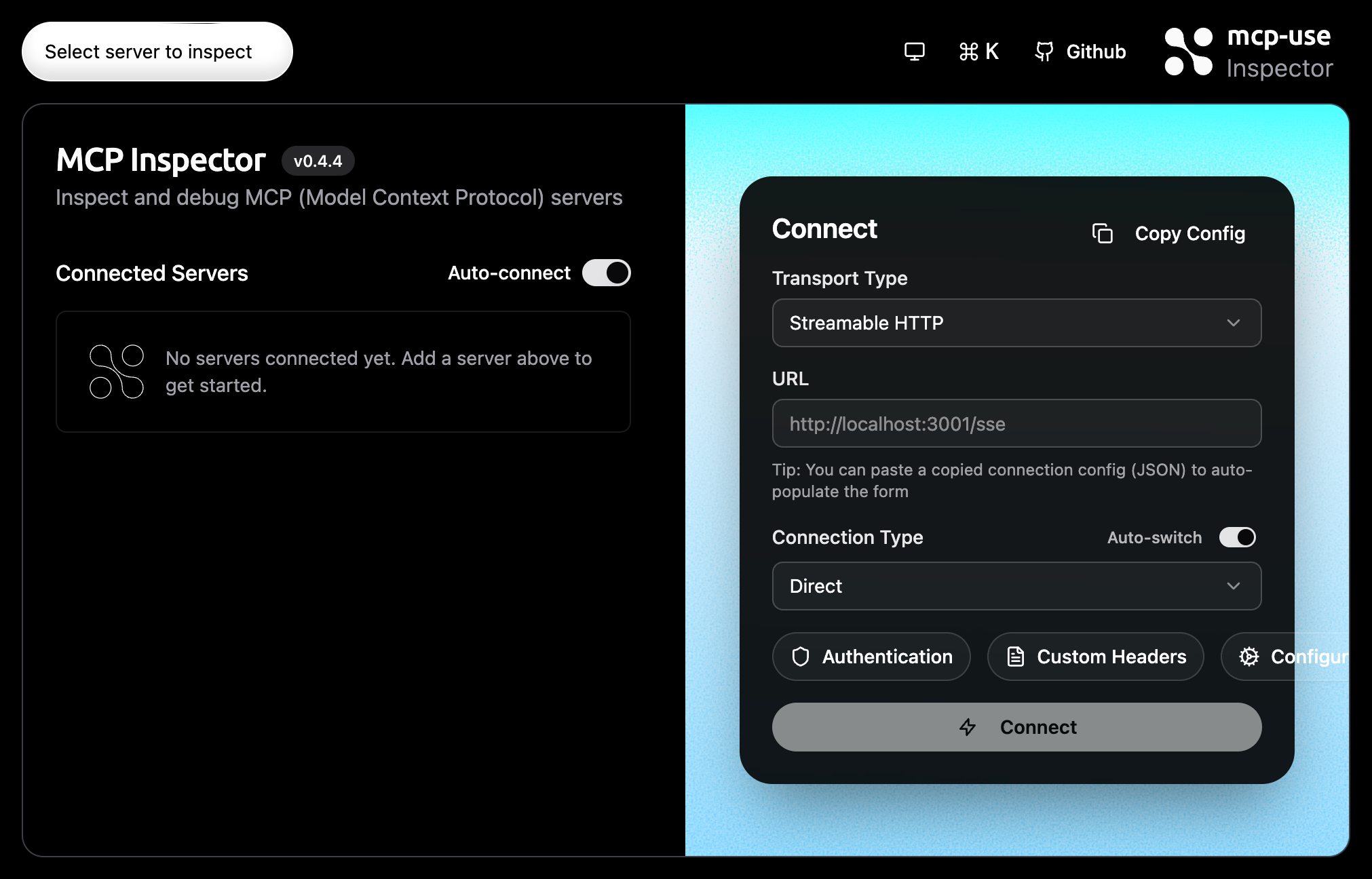 For most local and public HTTP servers, use **Direct**. Use **Via Proxy** only when the browser cannot reach the server directly because of CORS or network policy. See [Connection settings](/inspector/connection-settings) for the short decision guide.
When a server protects the whole MCP endpoint with OAuth, the connection waits
for authentication. Click **Authenticate**, complete the provider approval, and
return to the Inspector.
A mixed-auth server connects anonymously because its public tools are already
usable. If it publishes OAuth protected-resource metadata, the server card and
header show **This server is using mixed auth** with an **Authenticate** button.
You can authenticate immediately or wait until a protected operation returns a
wire-level OAuth challenge. The connection stays available for public
operations while authentication is optional.
## Run a tool
Open a connected server and select the **Tools** tab. Choose a tool, fill the generated form, and run it.
For most local and public HTTP servers, use **Direct**. Use **Via Proxy** only when the browser cannot reach the server directly because of CORS or network policy. See [Connection settings](/inspector/connection-settings) for the short decision guide.
When a server protects the whole MCP endpoint with OAuth, the connection waits
for authentication. Click **Authenticate**, complete the provider approval, and
return to the Inspector.
A mixed-auth server connects anonymously because its public tools are already
usable. If it publishes OAuth protected-resource metadata, the server card and
header show **This server is using mixed auth** with an **Authenticate** button.
You can authenticate immediately or wait until a protected operation returns a
wire-level OAuth challenge. The connection stays available for public
operations while authentication is optional.
## Run a tool
Open a connected server and select the **Tools** tab. Choose a tool, fill the generated form, and run it.
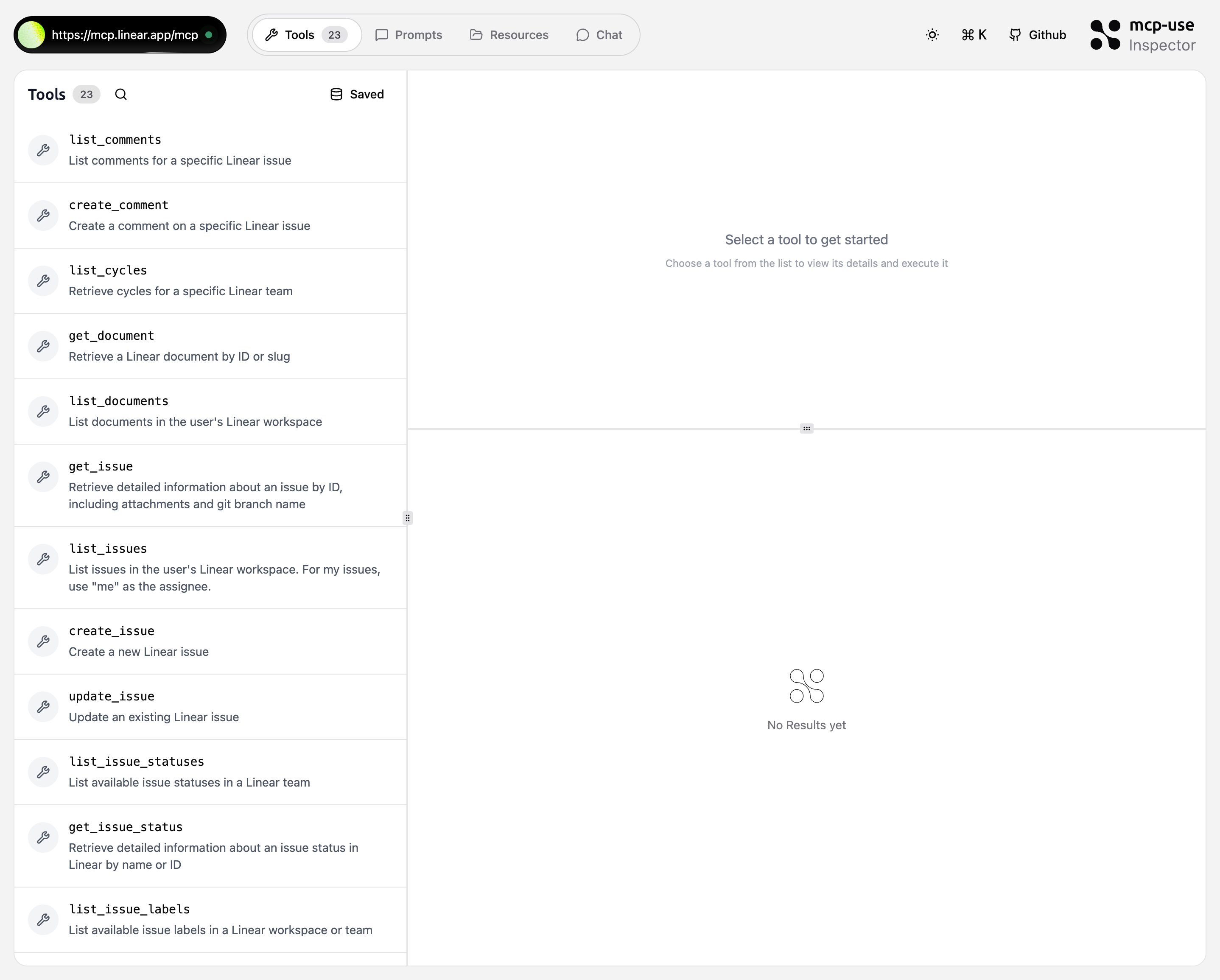 The Inspector shows the tool result, structured content, errors, and any widget returned by the tool. Use this view to verify schema validation, result shape, and widget data before testing the same server from a client.
For mixed-auth servers, a protected tool can surface the authentication action
only when it is needed. Authenticate, then retry the protected call. A normal
MCP tool result with `isError: true` is still shown as a tool error; the Inspector
does not infer OAuth from its text.
## Inspect resources and prompts
Use **Resources** to read server-provided content by URI. Use **Prompts** to test reusable prompt templates with arguments.
These tabs are useful when a client reports missing context. They show what the server actually exposes after connection and auth.
## Inspect Skills over MCP
**Skills** is always present in the Inspector navigation. When a server does not
advertise the experimental `io.modelcontextprotocol/skills` extension, the tab
is disabled, like Sampling, with an explanation that Skills over MCP is not
available from that server. When the extension is available, each skill appears
as a folder containing its `SKILL.md` and supporting resources.
When the extension is advertised but its catalog is empty, the tab is shown as
a red error state and disabled, with a tooltip explaining that the server
returned no skills.
Select a file to read it on demand. Before previewing it, the Inspector verifies the raw SHA-256 digest advertised by the skill manifest. For `SKILL.md`, it also checks that the parsed YAML frontmatter matches the catalog entry. A digest mismatch blocks the preview instead of passing changed content to the user or model.
Markdown, safe text, raster images, audio, and video have inline previews. Scripts, HTML, SVG, and other binary files are never executed; you can explicitly download verified files when needed.
## Try chat
Use **Chat** to test how an LLM calls your server's tools in a conversation. The chat view can use hosted chat where available or a provider key stored in your browser.
Keep chat testing focused on end-to-end behavior. Use the Tools tab first when you need to isolate input schemas, tool errors, or widget rendering.
For servers that advertise Skills over MCP, chat receives a compact catalog of
each skill's name, description, origin, and URI. When a skill is relevant, the
chat host loads its `SKILL.md` and supporting resources lazily through the
server's Skills over MCP and resource methods. It verifies each resource
against the manifest's raw SHA-256 digest before making it available to the
model. The Inspector never executes skill scripts or lets `allowed-tools`
widen the selected MCP tool permissions.
Skills over MCP remains experimental. Treat remote skill content as untrusted and review it before relying on its instructions. See the [working group](https://modelcontextprotocol.io/community/working-groups/skills-over-mcp), [SEP-2640](https://github.com/modelcontextprotocol/modelcontextprotocol/pull/2640), and [Agent Skills specification](https://agentskills.io/specification).
## Debug widgets
When a tool returns an MCP App widget, the Inspector renders it below the tool result and exposes widget debug controls.
Use the widget view to check:
* the `props`, `output`, and metadata passed to the widget
* inline, picture-in-picture, and fullscreen display modes
* desktop, tablet, and mobile layout behavior
* theme, locale, timezone, hover, touch, and safe-area settings
* Content Security Policy behavior before trying the widget in a host
See [Debug widgets in the Inspector](/inspector/debugging-chatgpt-apps) for the full workflow.
## Add the server to a client
After a server connects, use **Add to Client** to install or copy setup for supported clients such as Cursor, VS Code, Claude Desktop, Claude Code, Gemini CLI, and Codex CLI.
The Inspector shows the tool result, structured content, errors, and any widget returned by the tool. Use this view to verify schema validation, result shape, and widget data before testing the same server from a client.
For mixed-auth servers, a protected tool can surface the authentication action
only when it is needed. Authenticate, then retry the protected call. A normal
MCP tool result with `isError: true` is still shown as a tool error; the Inspector
does not infer OAuth from its text.
## Inspect resources and prompts
Use **Resources** to read server-provided content by URI. Use **Prompts** to test reusable prompt templates with arguments.
These tabs are useful when a client reports missing context. They show what the server actually exposes after connection and auth.
## Inspect Skills over MCP
**Skills** is always present in the Inspector navigation. When a server does not
advertise the experimental `io.modelcontextprotocol/skills` extension, the tab
is disabled, like Sampling, with an explanation that Skills over MCP is not
available from that server. When the extension is available, each skill appears
as a folder containing its `SKILL.md` and supporting resources.
When the extension is advertised but its catalog is empty, the tab is shown as
a red error state and disabled, with a tooltip explaining that the server
returned no skills.
Select a file to read it on demand. Before previewing it, the Inspector verifies the raw SHA-256 digest advertised by the skill manifest. For `SKILL.md`, it also checks that the parsed YAML frontmatter matches the catalog entry. A digest mismatch blocks the preview instead of passing changed content to the user or model.
Markdown, safe text, raster images, audio, and video have inline previews. Scripts, HTML, SVG, and other binary files are never executed; you can explicitly download verified files when needed.
## Try chat
Use **Chat** to test how an LLM calls your server's tools in a conversation. The chat view can use hosted chat where available or a provider key stored in your browser.
Keep chat testing focused on end-to-end behavior. Use the Tools tab first when you need to isolate input schemas, tool errors, or widget rendering.
For servers that advertise Skills over MCP, chat receives a compact catalog of
each skill's name, description, origin, and URI. When a skill is relevant, the
chat host loads its `SKILL.md` and supporting resources lazily through the
server's Skills over MCP and resource methods. It verifies each resource
against the manifest's raw SHA-256 digest before making it available to the
model. The Inspector never executes skill scripts or lets `allowed-tools`
widen the selected MCP tool permissions.
Skills over MCP remains experimental. Treat remote skill content as untrusted and review it before relying on its instructions. See the [working group](https://modelcontextprotocol.io/community/working-groups/skills-over-mcp), [SEP-2640](https://github.com/modelcontextprotocol/modelcontextprotocol/pull/2640), and [Agent Skills specification](https://agentskills.io/specification).
## Debug widgets
When a tool returns an MCP App widget, the Inspector renders it below the tool result and exposes widget debug controls.
Use the widget view to check:
* the `props`, `output`, and metadata passed to the widget
* inline, picture-in-picture, and fullscreen display modes
* desktop, tablet, and mobile layout behavior
* theme, locale, timezone, hover, touch, and safe-area settings
* Content Security Policy behavior before trying the widget in a host
See [Debug widgets in the Inspector](/inspector/debugging-chatgpt-apps) for the full workflow.
## Add the server to a client
After a server connects, use **Add to Client** to install or copy setup for supported clients such as Cursor, VS Code, Claude Desktop, Claude Code, Gemini CLI, and Codex CLI.
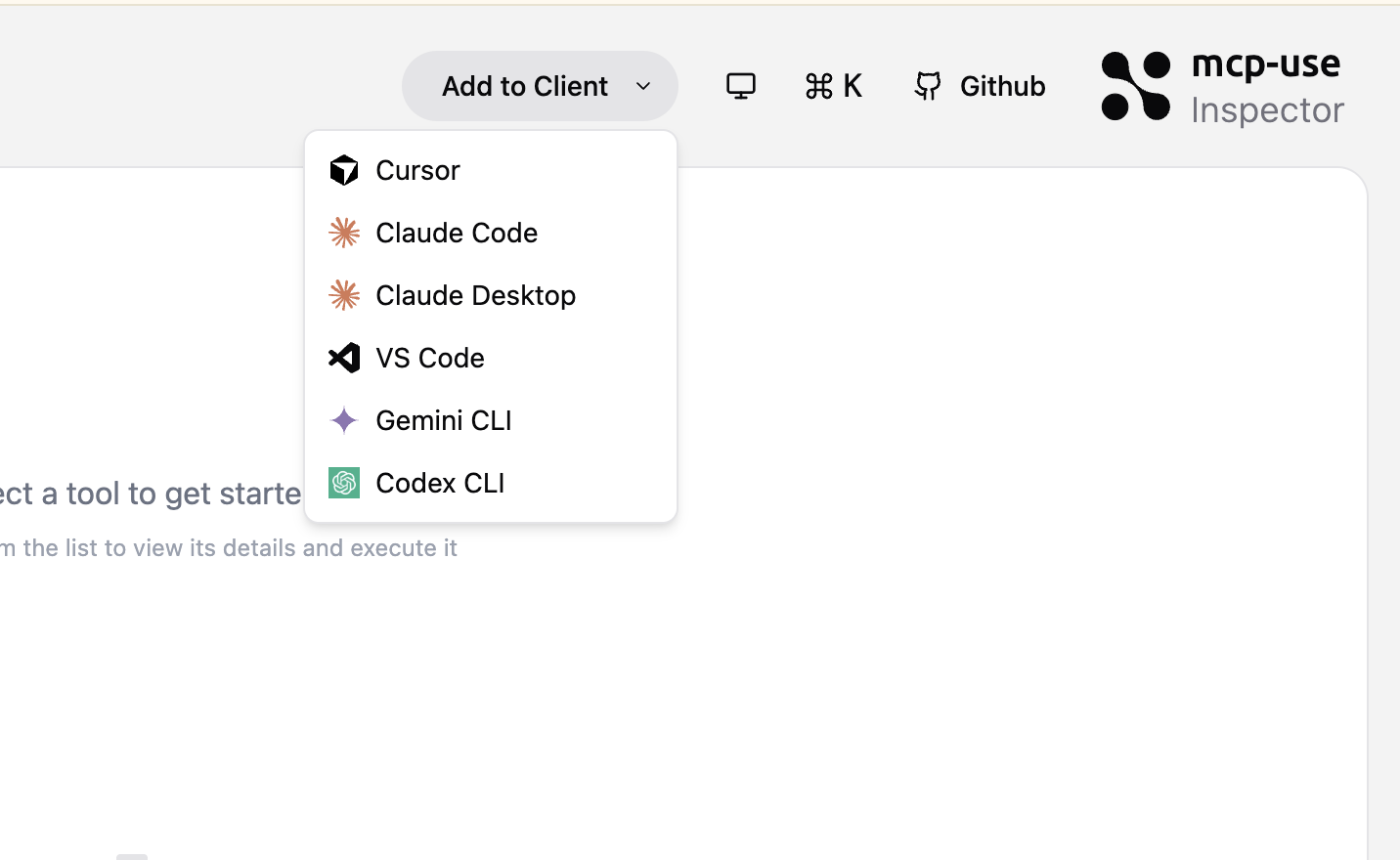 The Inspector uses the active connection settings when it prepares the client setup. Confirm the server URL and connection name before copying commands or opening client deep links.
## Command Palette
Press `Cmd/Ctrl + K` to open the [Command Palette](/inspector/command-palette). Use it to jump to tools, prompts, resources, saved requests, connected servers, and client setup actions.
For the full shortcut list, see [Keyboard shortcuts](/inspector/keyboard-shortcuts). For shareable links that open a server or tab directly, see [URL parameters](/inspector/url-parameters).
## Next steps
Run the Inspector from the command line and auto-connect to a server.
Choose Direct or Via Proxy and tune connection details only when needed.
Test MCP Apps widgets, layout behavior, CSP, and display modes.
Serve the Inspector from an Express, Hono, or mcp-use server.
The Inspector uses the active connection settings when it prepares the client setup. Confirm the server URL and connection name before copying commands or opening client deep links.
## Command Palette
Press `Cmd/Ctrl + K` to open the [Command Palette](/inspector/command-palette). Use it to jump to tools, prompts, resources, saved requests, connected servers, and client setup actions.
For the full shortcut list, see [Keyboard shortcuts](/inspector/keyboard-shortcuts). For shareable links that open a server or tab directly, see [URL parameters](/inspector/url-parameters).
## Next steps
Run the Inspector from the command line and auto-connect to a server.
Choose Direct or Via Proxy and tune connection details only when needed.
Test MCP Apps widgets, layout behavior, CSP, and display modes.
Serve the Inspector from an Express, Hono, or mcp-use server.